Effects and timing
Start a blank project
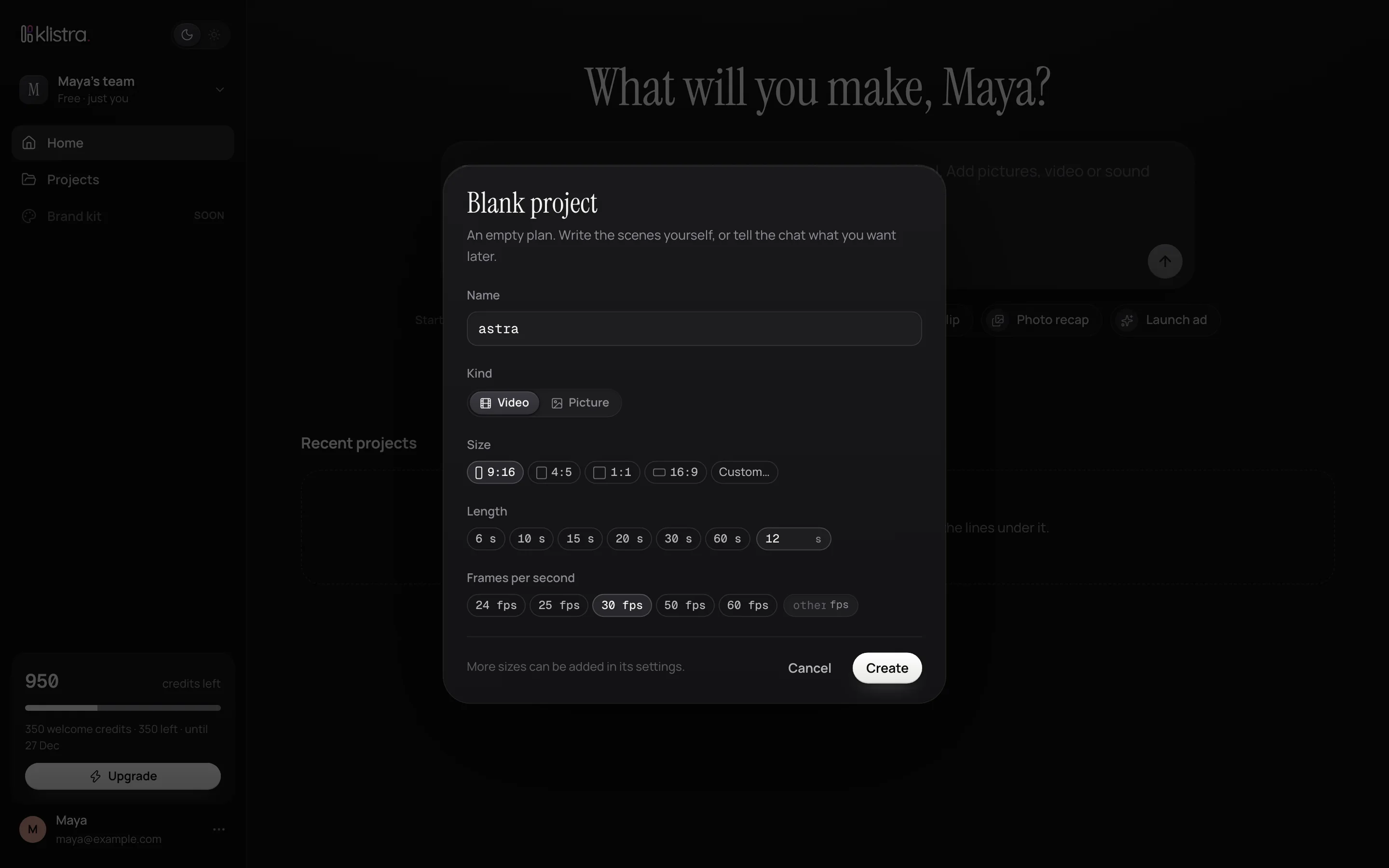
On the home page, choose Blank project under the box: a name, the size it starts in, and the length. Type a length of your own under Other length, here 12 seconds. Then switch to Advanced with 2, for the script and the timeline.
Add the photo and the logo
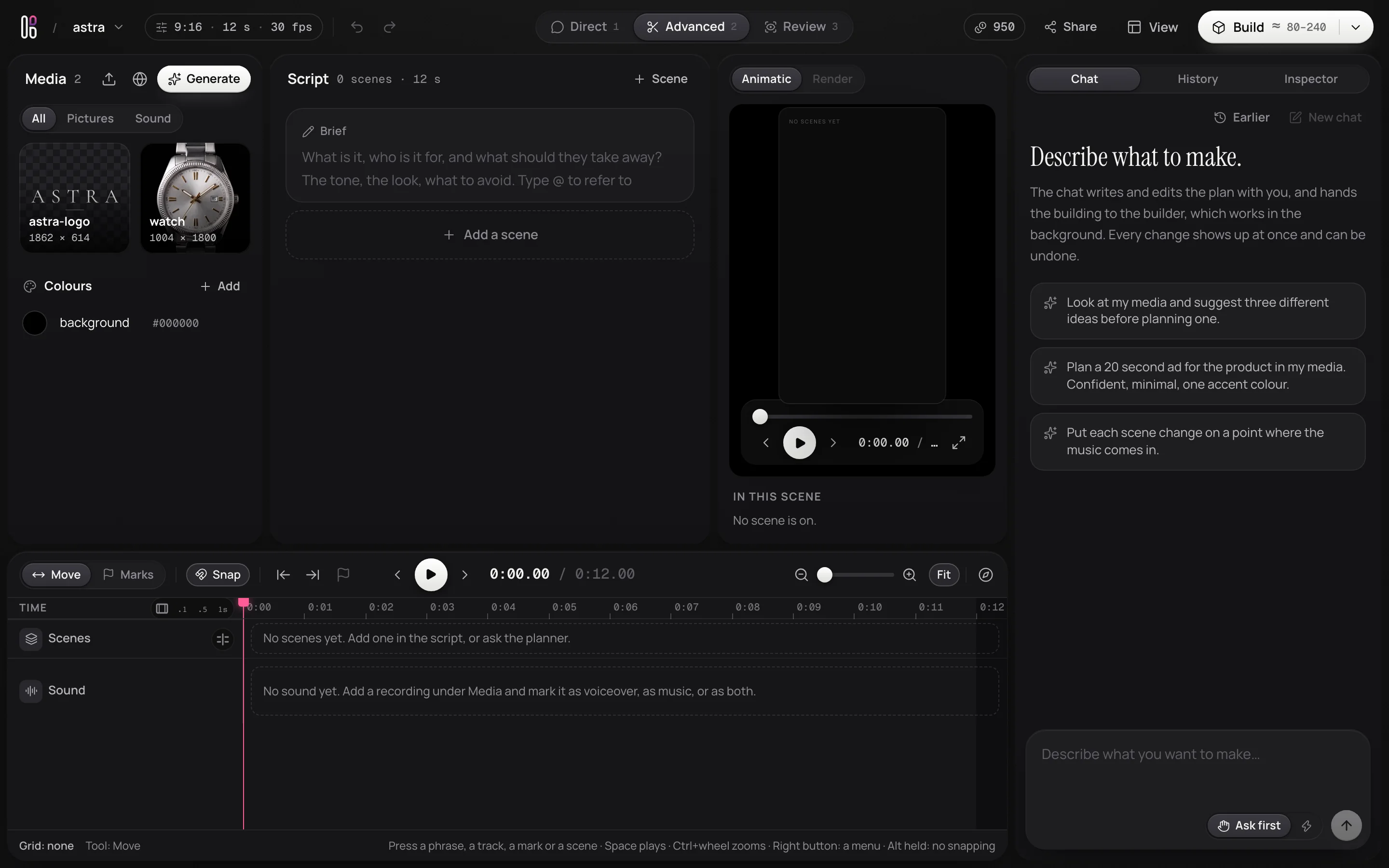
Drop the photo of the watch and the logo file on Media. Each gets a name you can write with @: @watch and @astra-logo. A logo with a see-through background stays see-through.
Make the opening clip in Generate
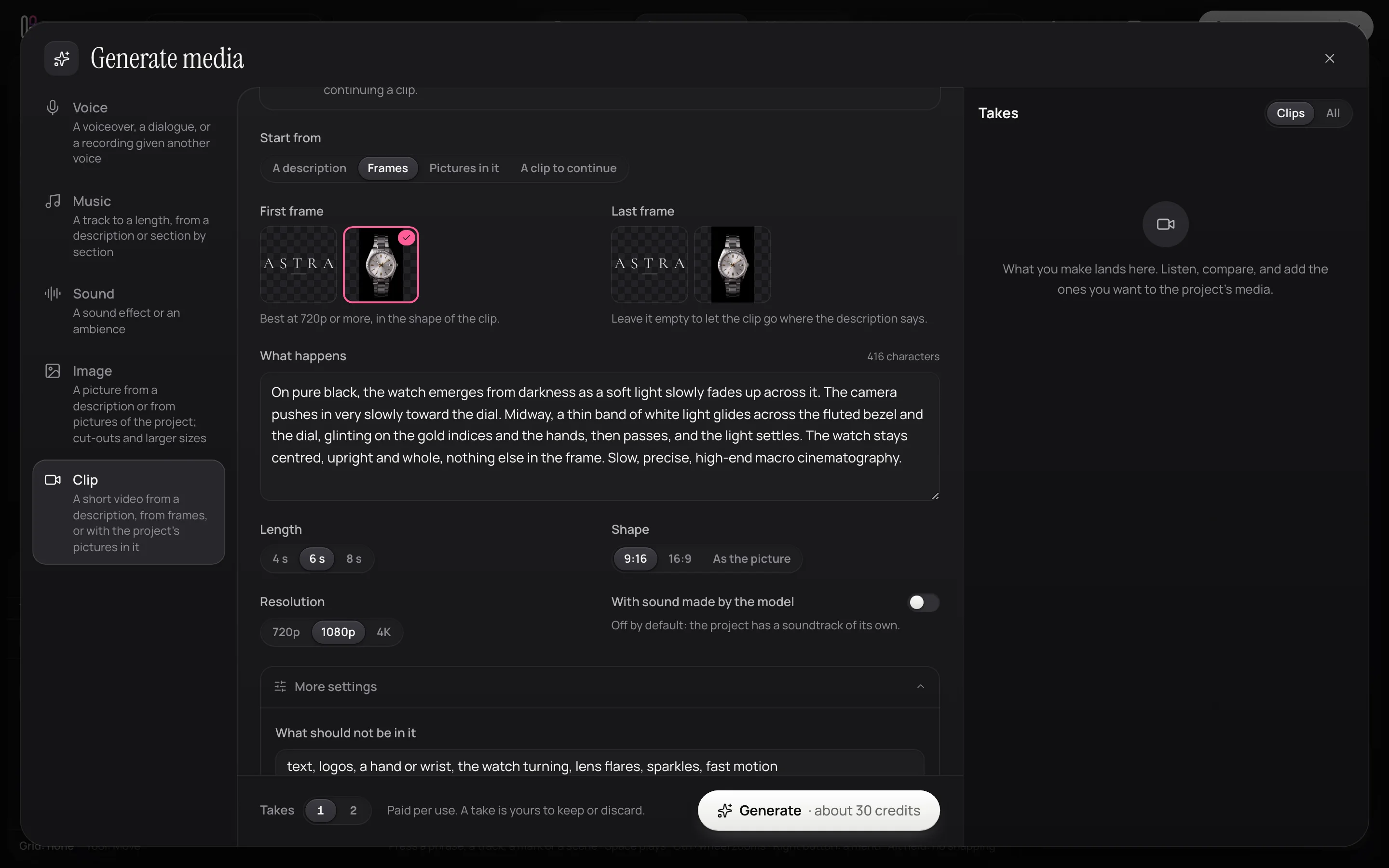
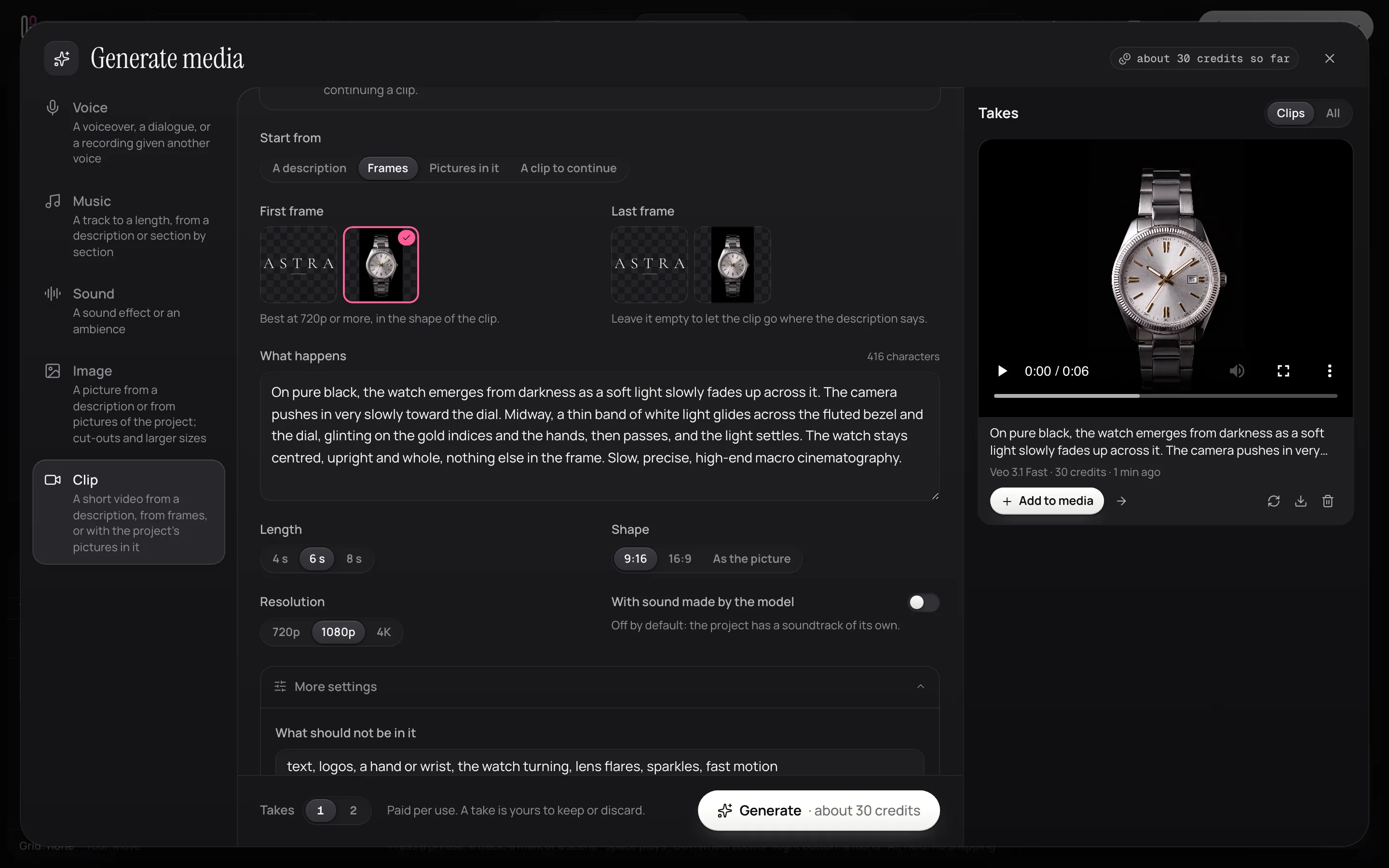
Press Generate on Media to make media yourself, with every setting in view. Choose Clip, start from Frames, and pick the photo as the first frame. Then write what happens: what is seen, how the camera moves, the light, the pace.
On pure black, the watch emerges from darkness as a soft light slowly fades up across it. The camera pushes in very slowly toward the dial. Midway, a thin band of white light glides across the fluted bezel and the dial, glinting on the gold indices and the hands, then passes, and the light settles. The watch stays centred, upright and whole, nothing else in the frame. Slow, precise, high-end macro cinematography.
Under More settings, say what should not be in it: text, logos, a hand or wrist, the watch turning, lens flares, sparkles, fast motion. The price is on the button before you press it.
Keep the take you want
Takes land on the right as they are made. Watch it, and press Add to media to keep it; a take you do not keep stays out of the project. Make two at once with Takes when you want to choose.
Ask for the effects, precisely
Now the film, asked of the chat. The more exactly you say what moves, how and when, the closer the first render. Name the scenes and their times, describe each effect as you see it, and say what to avoid.
Now the film: 12 seconds, two scenes, Time until 7 s and Name after.
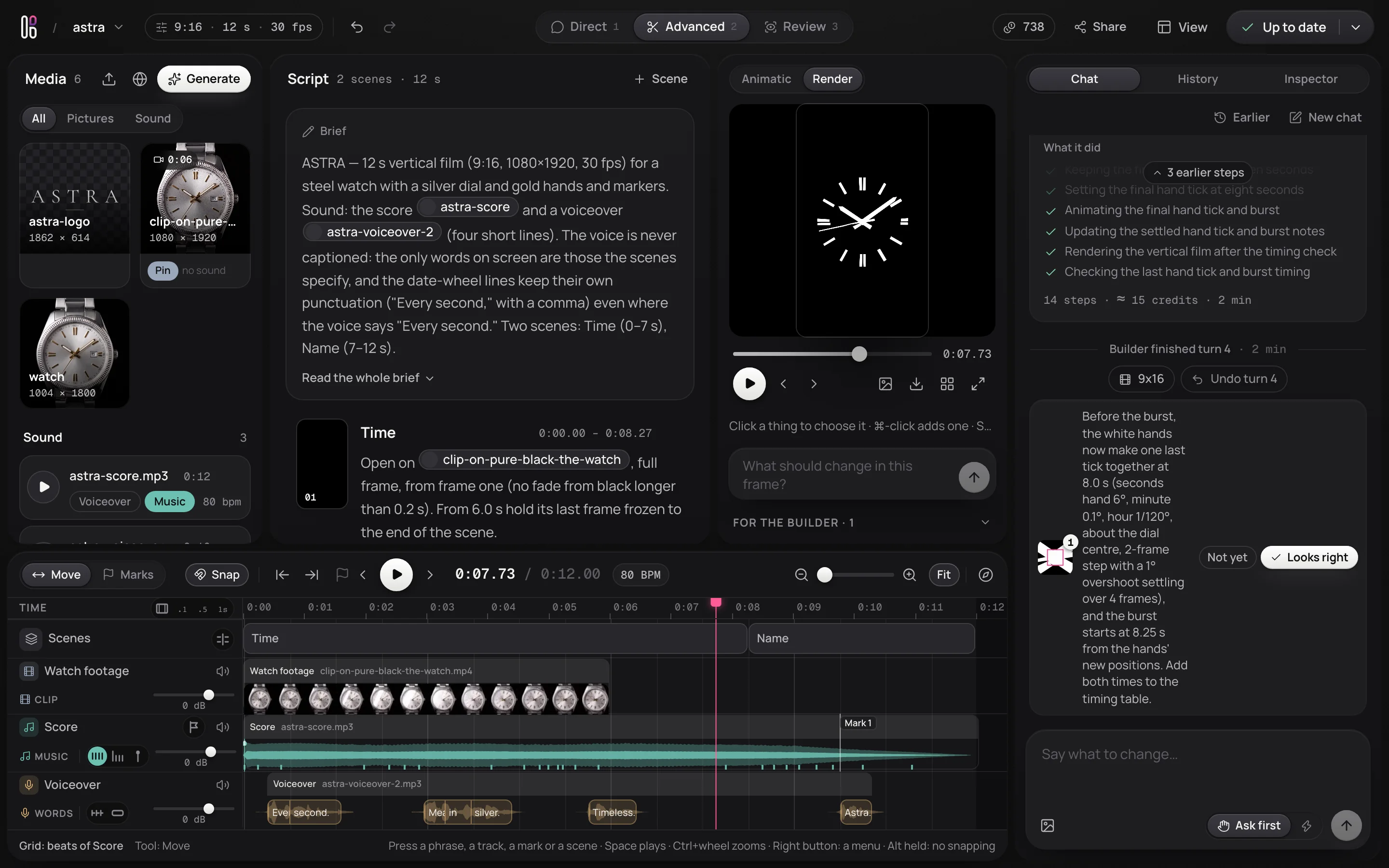
Time: open on the new video of the watch. Lock a ring of 60 thin gold ticks around the bezel that light one by one like a seconds track as the camera pushes in. Three lines of classy serif type roll up into place and out again like the date wheel of a watch, low in the frame: “Every second,” then “measured in silver.” then “Timeless.” in italics. Small steel labels: ASTRA top left, an elapsed counter 00:00:00 top right that steps each second, WATER RESISTANT 50 M at the bottom.
Name: everything fades away except the hands and the hour markers, which turn into pure white shapes traced exactly over the watch. They burst slowly into a cloud of white particles that drifts, then gathers into @astra-logo, whole at 10 s, while some of the particles stay behind as still stars in a night sky.
Black, white, steel and one gold accent. No glow, no lens flares, no grain.
The chat writes it into the plan: the brief, the two scenes, and what each shows when.
Ask the chat for music
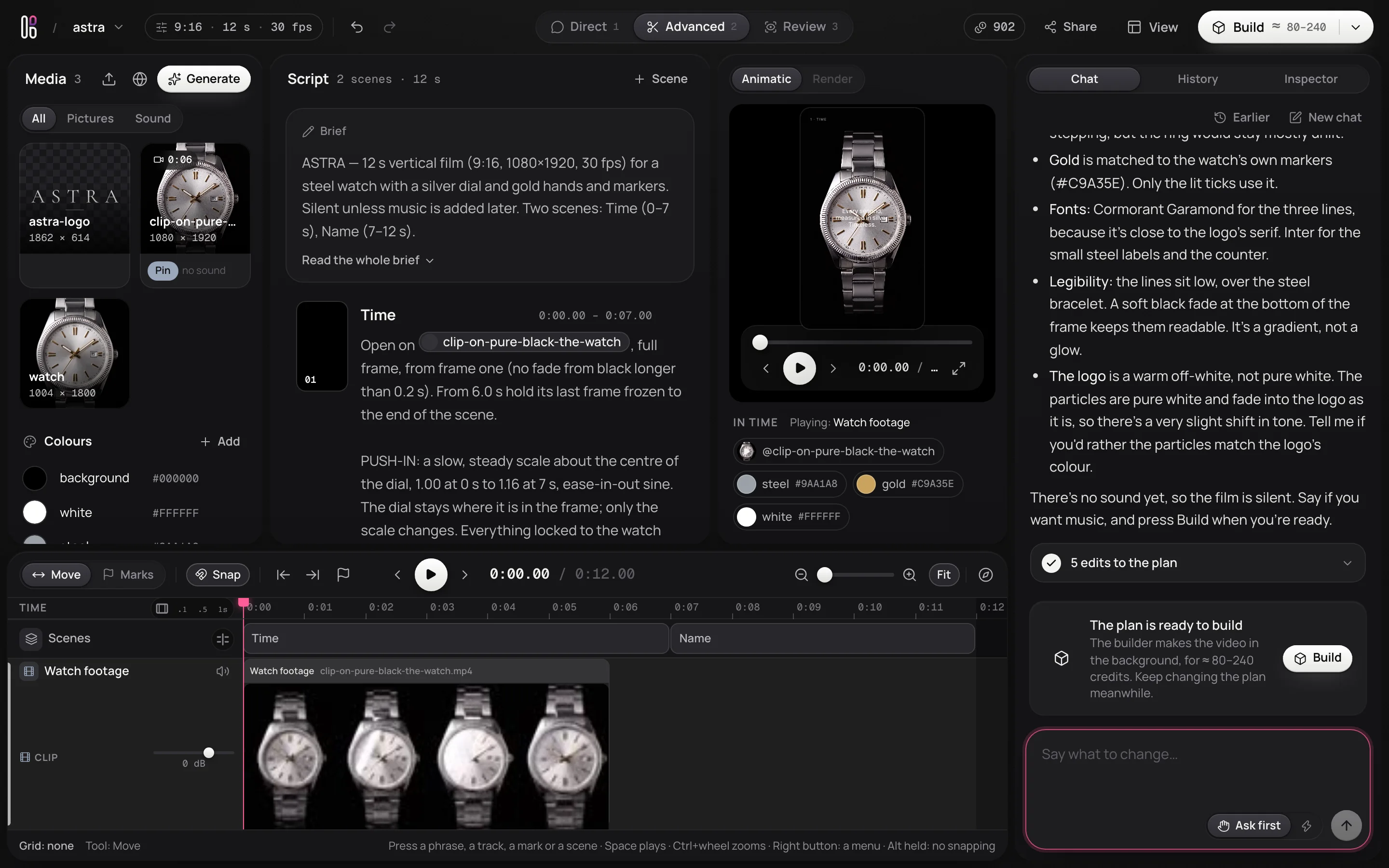
The chat can make media too. Ask for the score the way you hear it:
Make a score for it: a minimal luxury cinematic underscore at 60 BPM, a soft clock tick on every beat over a warm low drone; the ticks stop at 8 s as the particles burst, and an airy swell carries the name. 12 seconds, no vocals. Put it on the timeline, and leave the timing of the scenes to me.
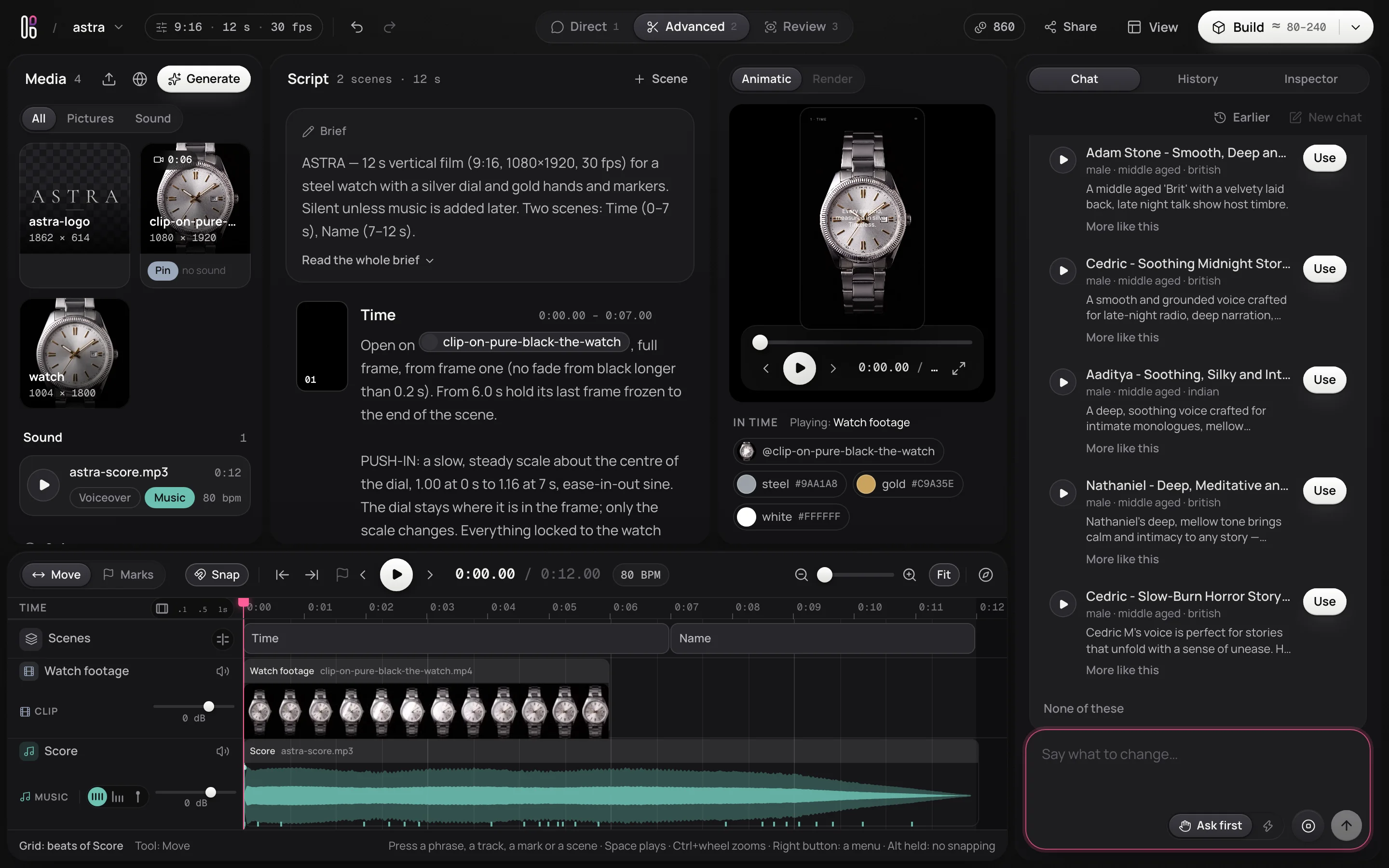
Before it spends anything, it asks, with the price: Make it, Decline, or Accept, and stop asking. Beside the message box, Ask first keeps it asking; Auto lets it make media without asking, up to a limit for one thing. The music is measured as it lands: its tempo, its beats and its bars, drawn on the timeline.
Find the voice by describing it
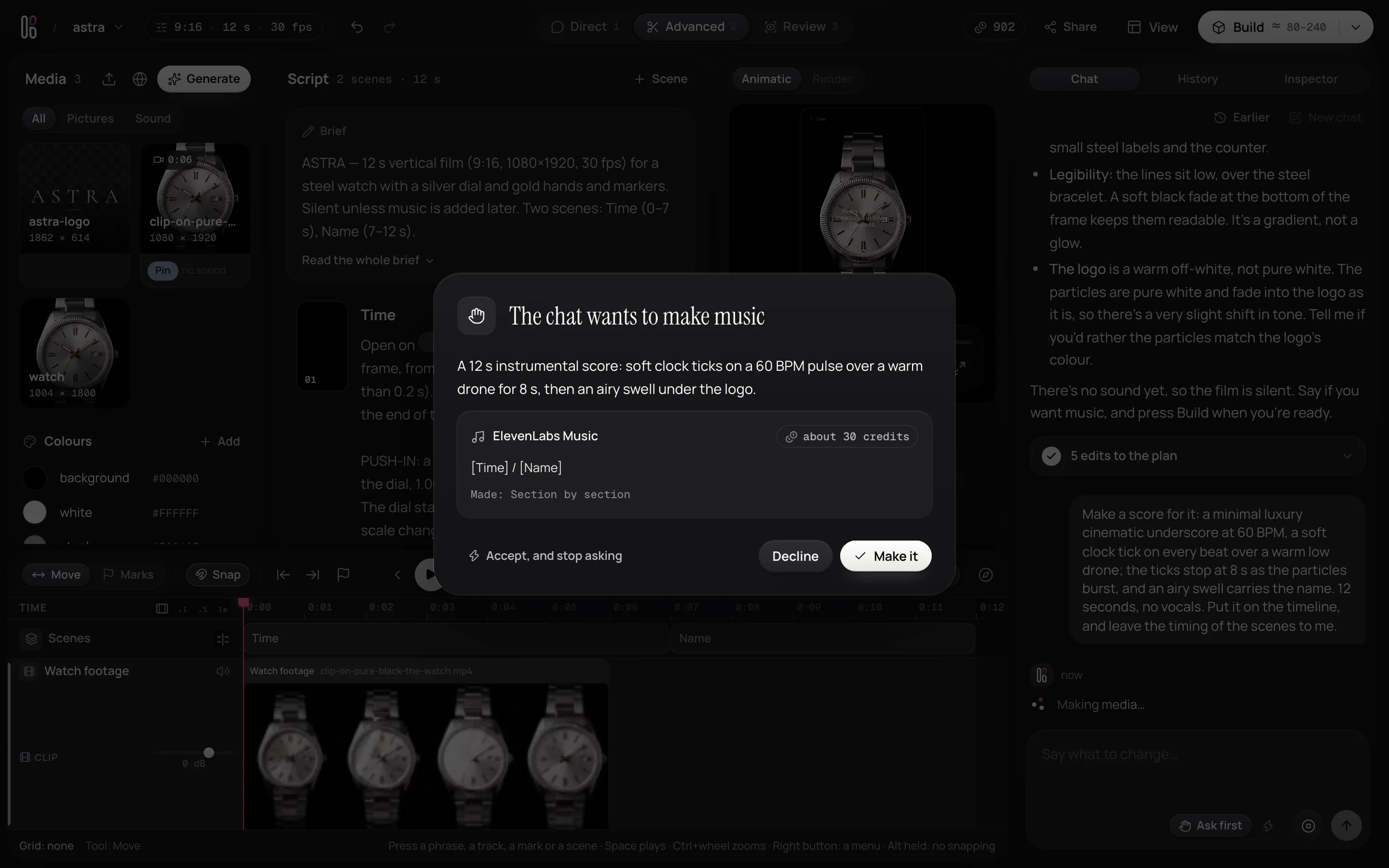
Ask for a voiceover and describe the voice as it comes to you:
Add a voiceover in a deep, premium male voice: low, slow and close, like the narrator of a luxury watch film. Four short lines: “Every second.” “Measured in silver.” “Timeless.” with the type, then “ASTRA.” as the name forms. I will set the timing on the timeline myself.
Five voices come back from a library of thousands, each saying your first line. Play them, press Use on the one you want, or More like this on one that is close, with how it should differ.
The voice on the timeline, the grid on the beat
The voice arrives on the timeline, measured: its phrases, and the words in them. Once music is measured, its beats are the grid, chosen beside its name, so everything you drag lands on a beat. The music offers bars too, a voice its words and phrases, and time its frames.
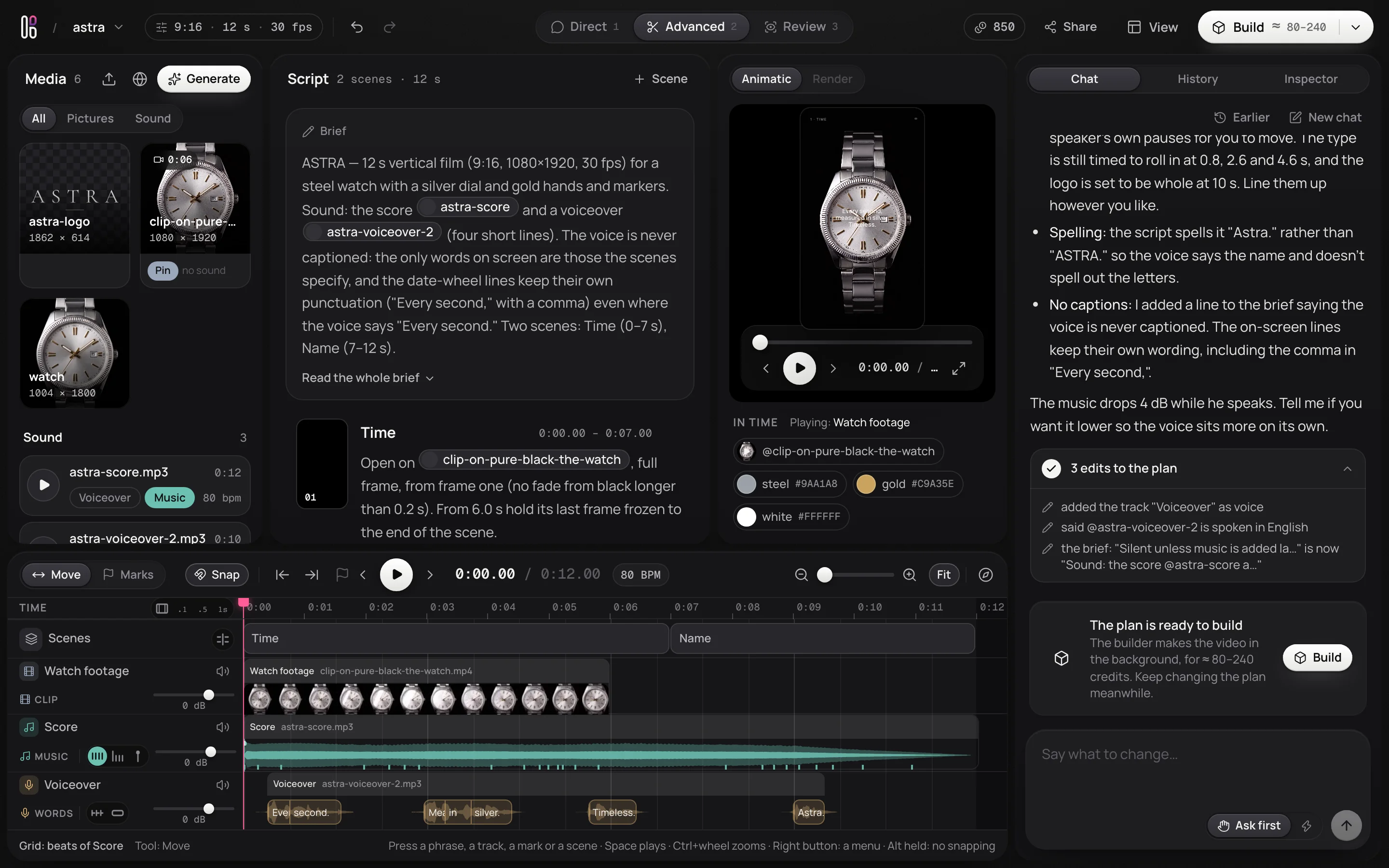
Put the cut on the beat
The music was asked to stop ticking at 8 seconds, so the cut belongs on the beat there, not at 7. Turn on Stick right in the toolbar, and drag the edge between the two scenes: it snaps to the beat, and the scene after it keeps touching. Without Stick right, an edge stops at the scene next to it.
Land the name on the beat
Click a word to pick it out, zooming in if the phrase is small. Drag its phrase: the picked word, not the start of the phrase, lands on the beat. Here the name moves from 9 seconds to the beat just before 10, so it is spoken as the logo comes together.
Mark the moment
Choose Marks and press the music's row at the name: a flag marks that moment, and the inspector shows it, to rename or move. Marks are good places to cut and to land things on, and what gets made is timed to them. M marks the playhead on the selected row.
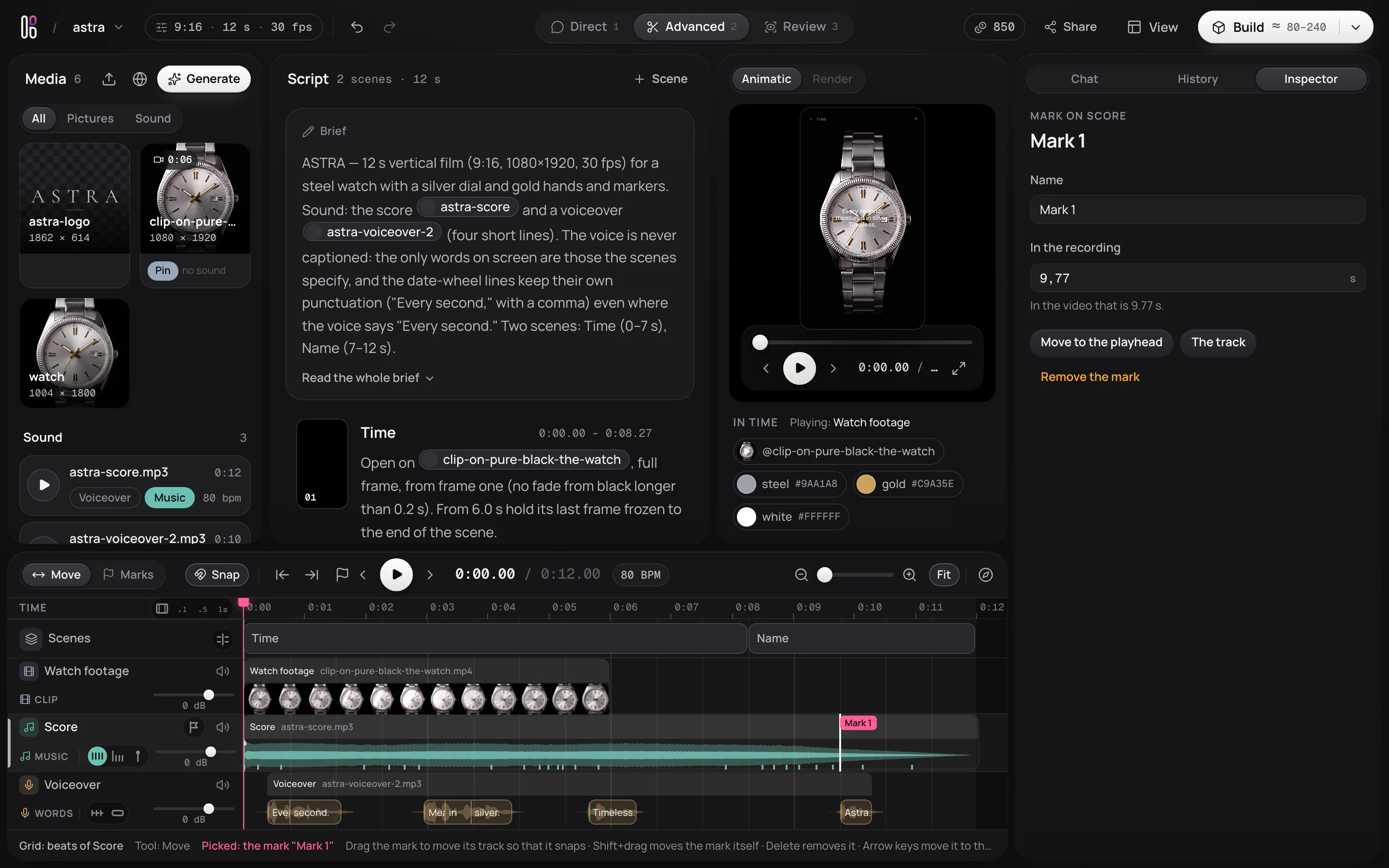
Make it
Press Build. What you placed by hand is kept exactly: the cut, the words and the mark. Keep changing the plan while it is made; the next build picks up what changed.
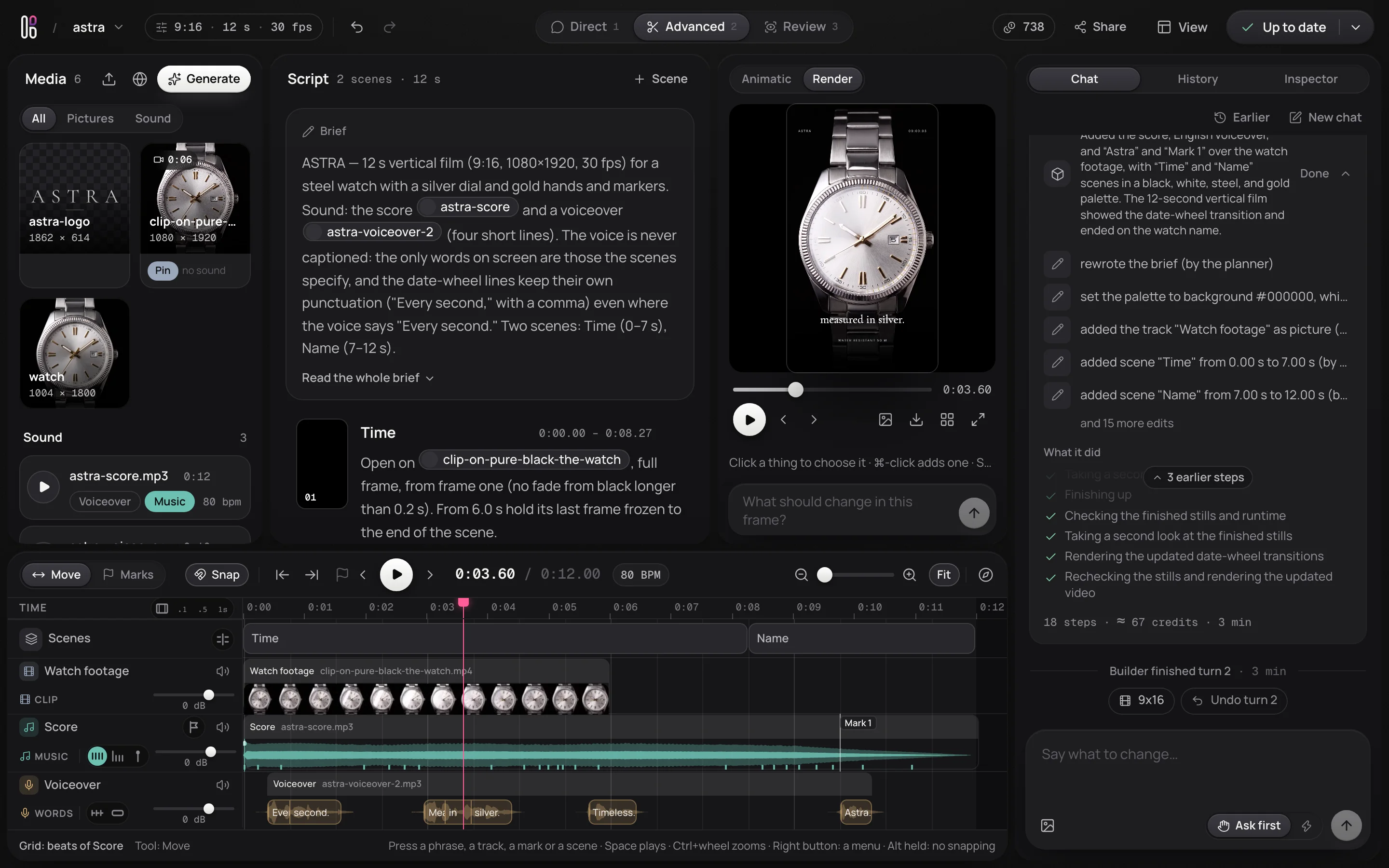
Point at the hands, and ask for the last tick
The film is close, but before the hands break apart they should tick once more, like a real watch. Click the hands in the render to pick them out, and say it:
Before they turn into particles, let the hands make one last tick together: one second forward, with a tiny settle, like a real movement.
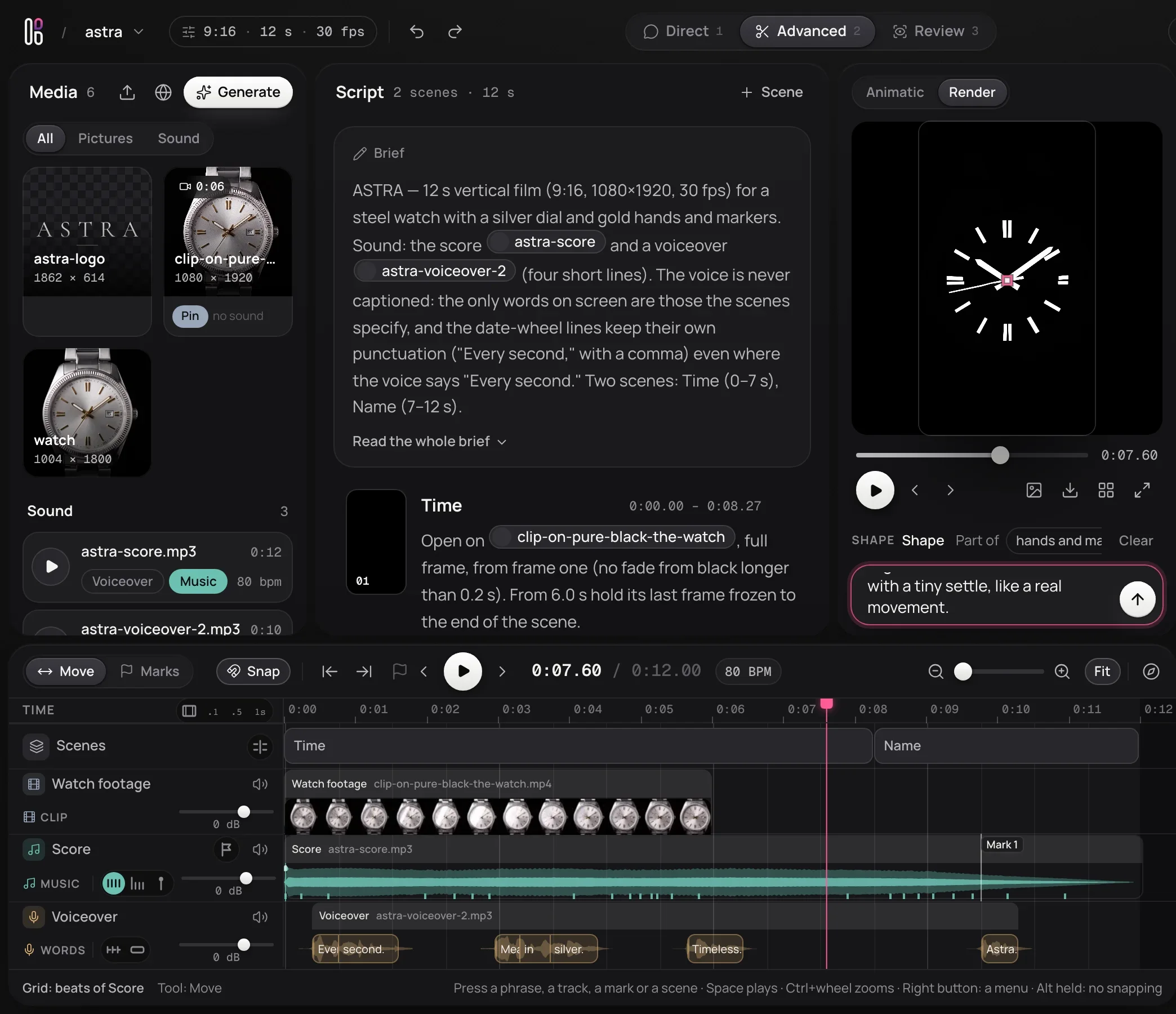
Make it again, and check
Press Build again. Only what you asked for changes. When it is done, the note asks whether it came out as you meant: Looks right closes it. From here, share it or download it as in your first video.